
Zed

Follow these steps to start tracking your coding time in Zed with Hackatime. The screenshots are from macOS, but the steps are the same on Linux and Windows.
Step 1: Log into Hackatime
Make sure you have a Hackatime account and are logged in.
Step 2: Run the setup script
Visit the setup page to automatically configure your API key and endpoint. This ensures everything works perfectly with Hackatime.
If Zed is already installed, the setup script also tells Zed to install the Hackatime extension the next time it starts. Restart Zed and skip to Step 4 if the extension shows up as installed.
Step 3: Install the Hackatime extension
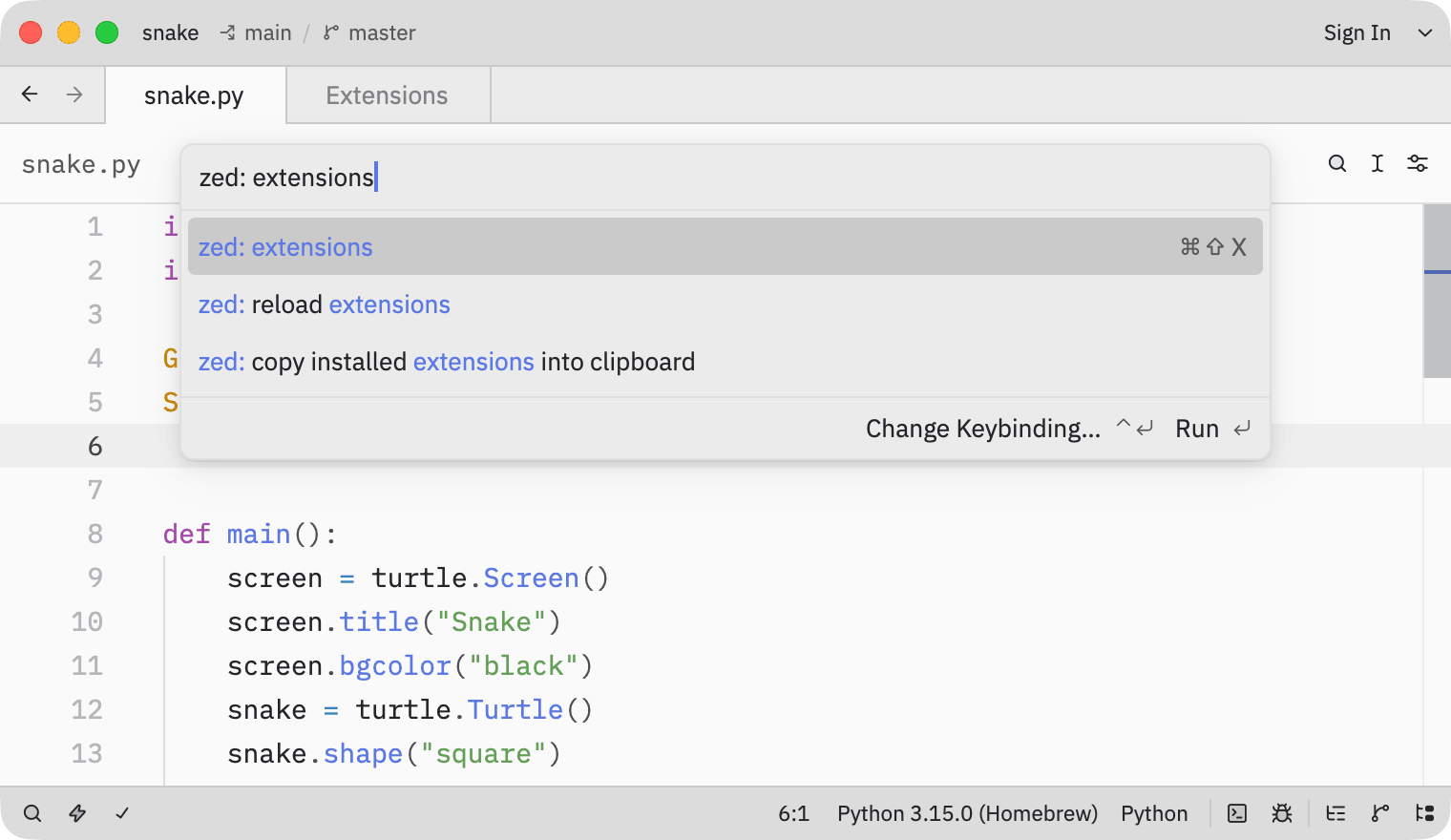
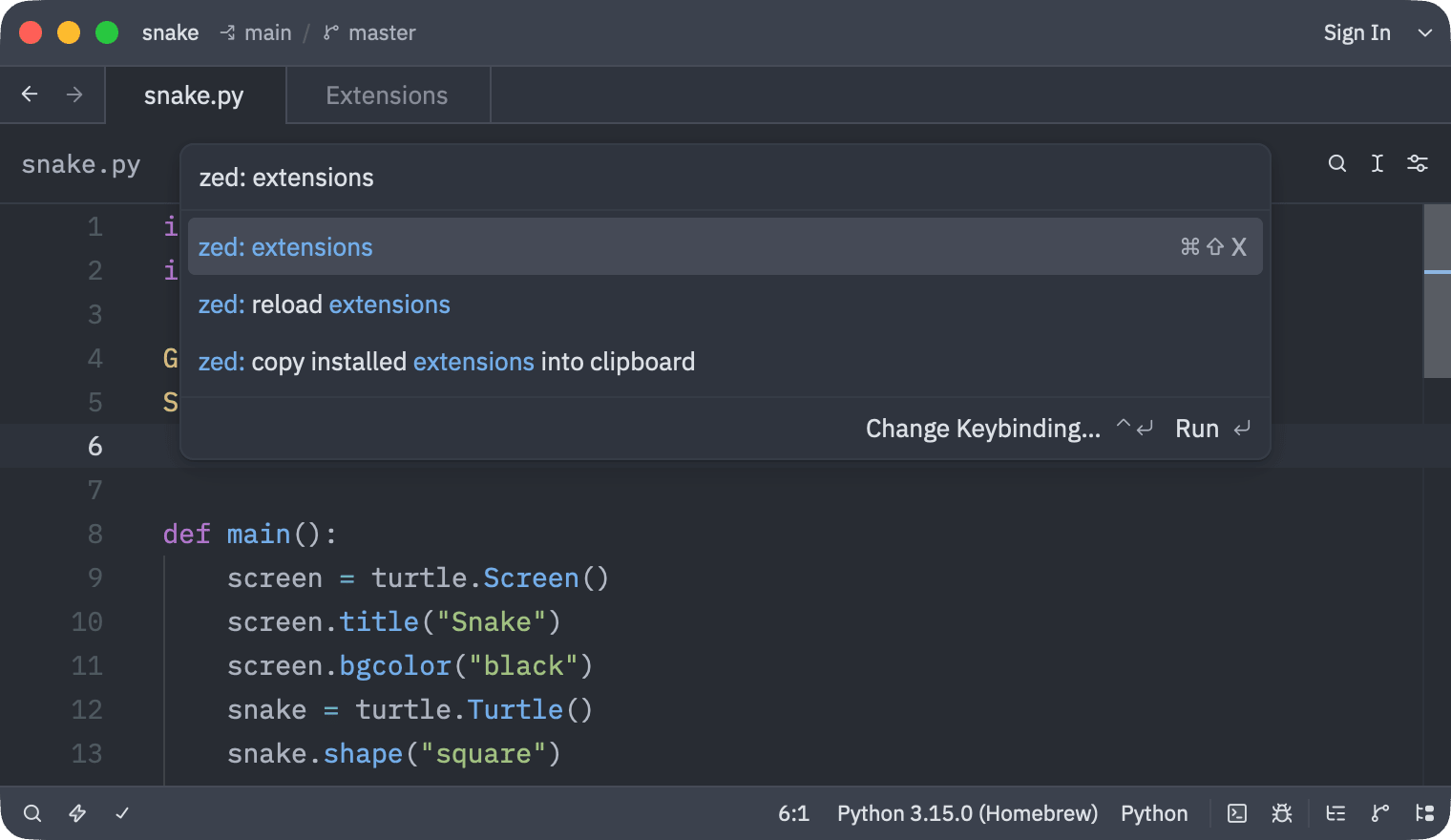
Open the Extensions page by pressing Cmd+Shift+X on Mac or Ctrl+Shift+X on Linux and Windows. You can also open the command palette (Cmd+Shift+P or Ctrl+Shift+P) and run zed: extensions.
Search for hackatime and press Install on the extension called hackatime. Its extension ID is hackatime.
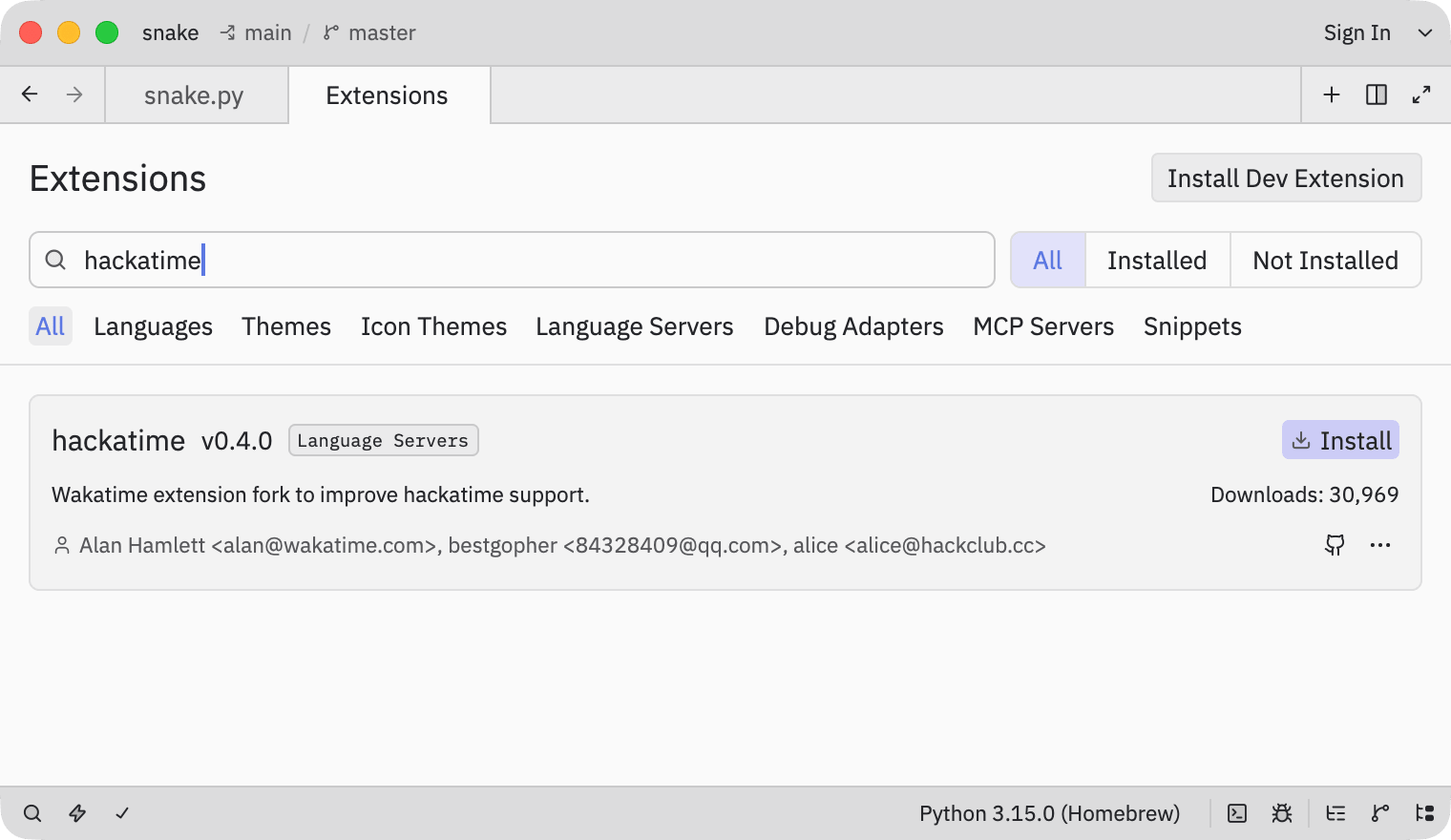
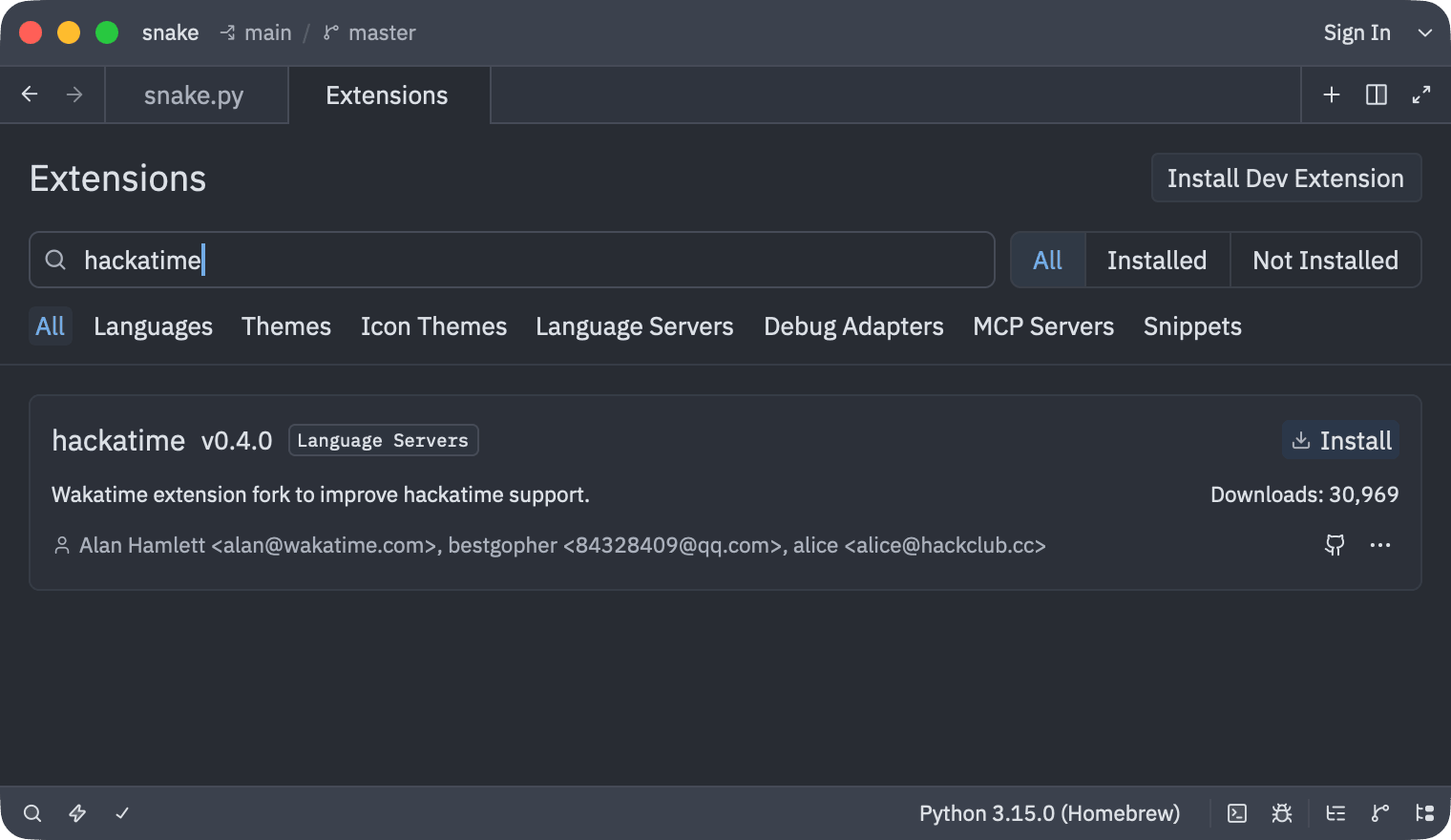
Once it’s installed, the button changes to Uninstall.


You can also install it from your Zed settings file. Run zed: open settings file from the command palette and add:
{
  "auto_install_extensions": {
    "hackatime": true
  }
}
You only need this extension. If you also have the WakaTime extension installed, uninstall it so your time isn’t sent twice.
Step 4: Trust your project
Zed opens projects you haven’t used before in Restricted Mode, which stops language servers from running. The Hackatime extension is a language server, so nothing is tracked until you trust the project. Press Trust and Continue when Zed asks.
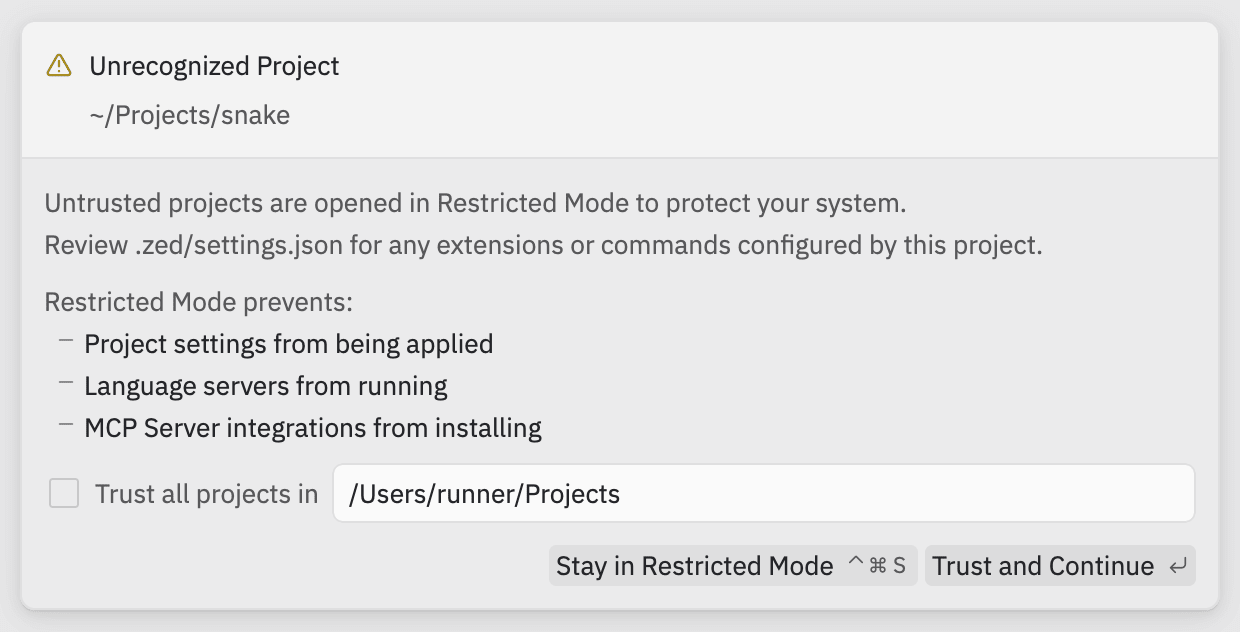
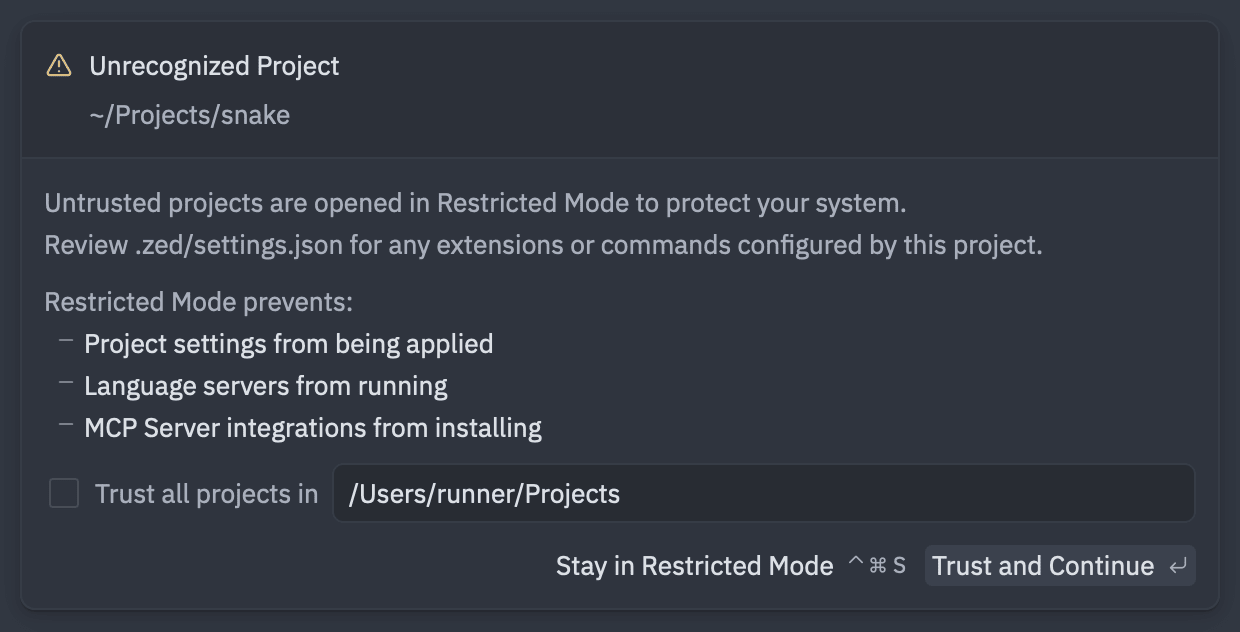
Tick Trust all projects in to trust every project in that folder at once. If you see Restricted Mode in the title bar, click it to trust the project you have open.
Step 5: Check that it’s running
Open a file and click the lightning bolt in the bottom-left corner. hackatime should be listed with a green dot.
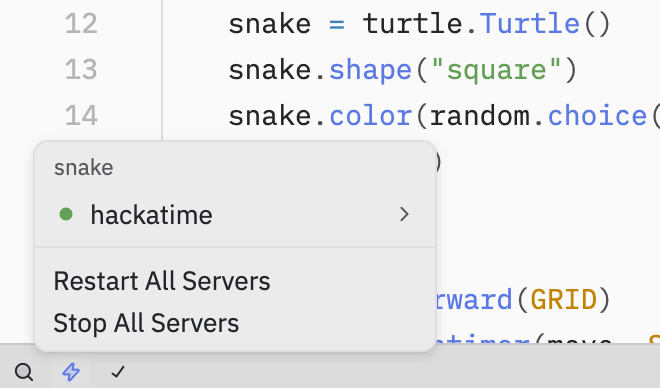
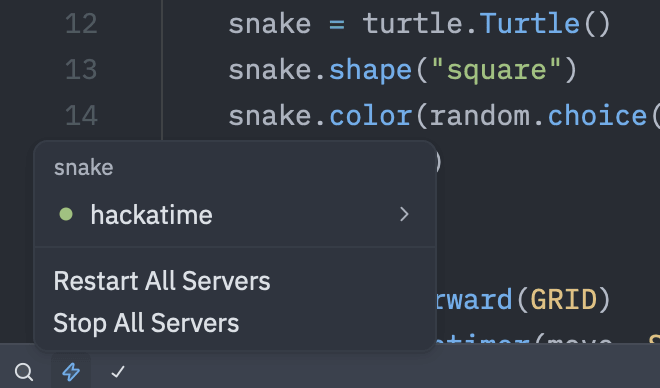
Start typing and your time will appear on your Hackatime dashboard within a few minutes.
What gets tracked
Zed sends a heartbeat when you edit a file, at most once every two minutes for the same file. Your project, branch, language, line and cursor position come along with it. Opening or saving a file without editing it isn’t tracked and neither are files in languages the extension doesn’t support, such as plain text.
Troubleshooting
- Not seeing your time? Make sure you completed the setup page first, then edit a file. Heartbeats can take a few minutes to show up.
- No hackatime in the language server menu? Check the title bar for Restricted Mode and trust the project.
- “Failed to run hackatime” in the status bar? Click it to see the error. The extension downloads its helper programs from GitHub the first time it runs, so check your connection and restart Zed.
- Plugin not working? Try restarting Zed after installation.
- Still stuck? Ask for help in Hack Club Slack (#hackatime-help channel).
Next steps
Once configured, your coding time will automatically appear on your Hackatime dashboard. Happy coding!