
Xcode

Follow these steps to start tracking your coding time in Xcode with Hackatime.
Step 1: Log into Hackatime
Make sure you have a Hackatime account and are logged in.
Step 2: Run the setup script
Visit the setup page to automatically configure your API key and endpoint. This ensures everything works perfectly with Hackatime.
Step 3: Install the Xcode plugin
Run this command in your terminal to install the Hack Club xcode-hackatime plugin:
curl -fsSL https://raw.githubusercontent.com/hackclub/xcode-hackatime/main/install.sh | bashThis installs xcode-hackatime, a background agent that tracks your Xcode coding time (file, line, cursor position, and saves) using your Hackatime config from the setup script. It’s super lightweight and uses ~6MB of RAM, so you don’t have to worry about battery/RAM usage!
Step 4: Grant Accessibility permission
To track things like what line you’re on, we use macOS’s Accessibility APIs!
This means that macOS will ask you to allow xcode-hackatime to use them: System Settings -> Privacy & Security -> Accessibility -> enable xcode-hackatime. You’ll probably see a window like this to help you through it:
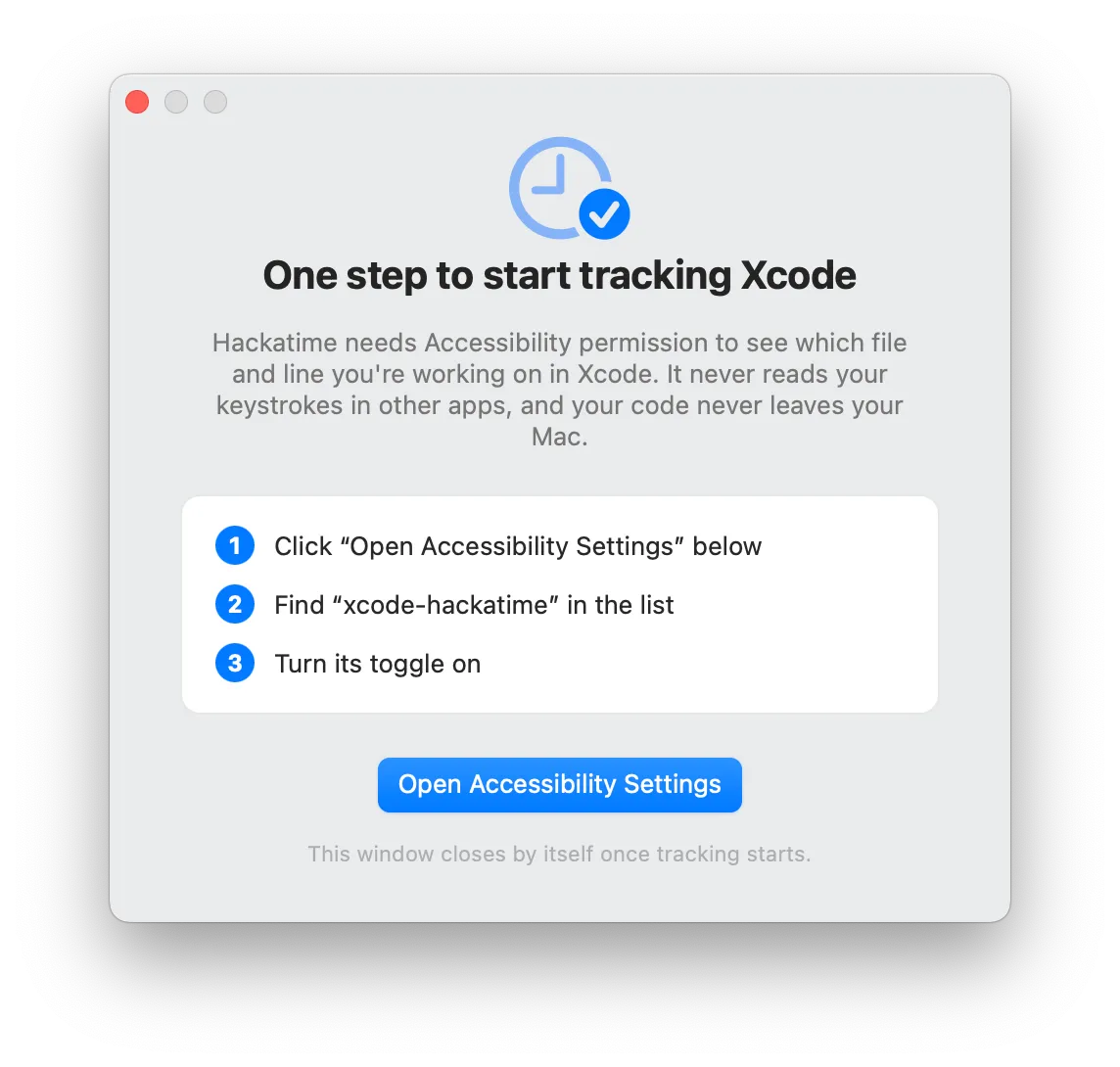
That’s it - the agent starts at login and follows Xcode automatically!
Troubleshooting
Not seeing your time?
Make sure you completed the setup page first.
Something not working?
Run ~/.wakatime/xcode-hackatime doctor - it checks every part of the tracking chain and prints a fix for anything broken.
Previously used the WakaTime Mac app?
xcode-hackatime turns off its Xcode tracking automatically so your time is not double-counted (you’ll get a notification when that happens).
Still stuck?
Ask for help in Hack Club Slack (#hackatime-help channel).
Next steps
Once configured, your coding time will automatically appear on your Hackatime dashboard. Happy coding!