
RubyMine

Follow these steps to start tracking your coding time in RubyMine with Hackatime. RubyMine uses the WakaTime plugin, which works with Hackatime once the setup script has run. The screenshots are from macOS, but the steps are the same on Linux and Windows.
Step 1: Log into Hackatime
Make sure you have a Hackatime account and are logged in.
Step 2: Run the setup script
Visit the setup page to automatically configure your API key and endpoint. This ensures everything works perfectly with Hackatime.
If RubyMine is already installed, the setup script also installs the WakaTime plugin for you. Restart RubyMine and skip to Step 4 if WakaTime is already listed on the Installed tab in Settings → Plugins.
Step 3: Install the WakaTime plugin
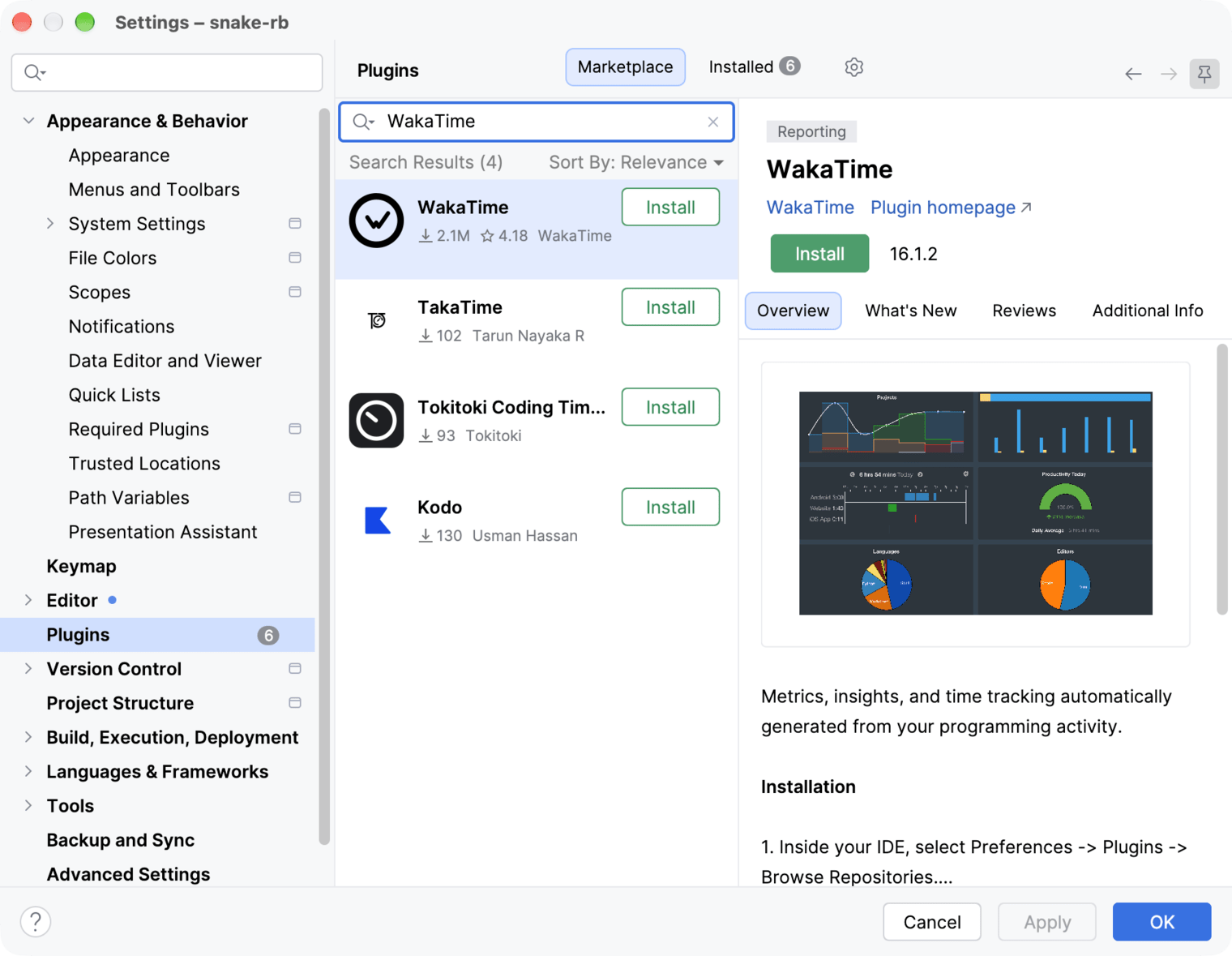
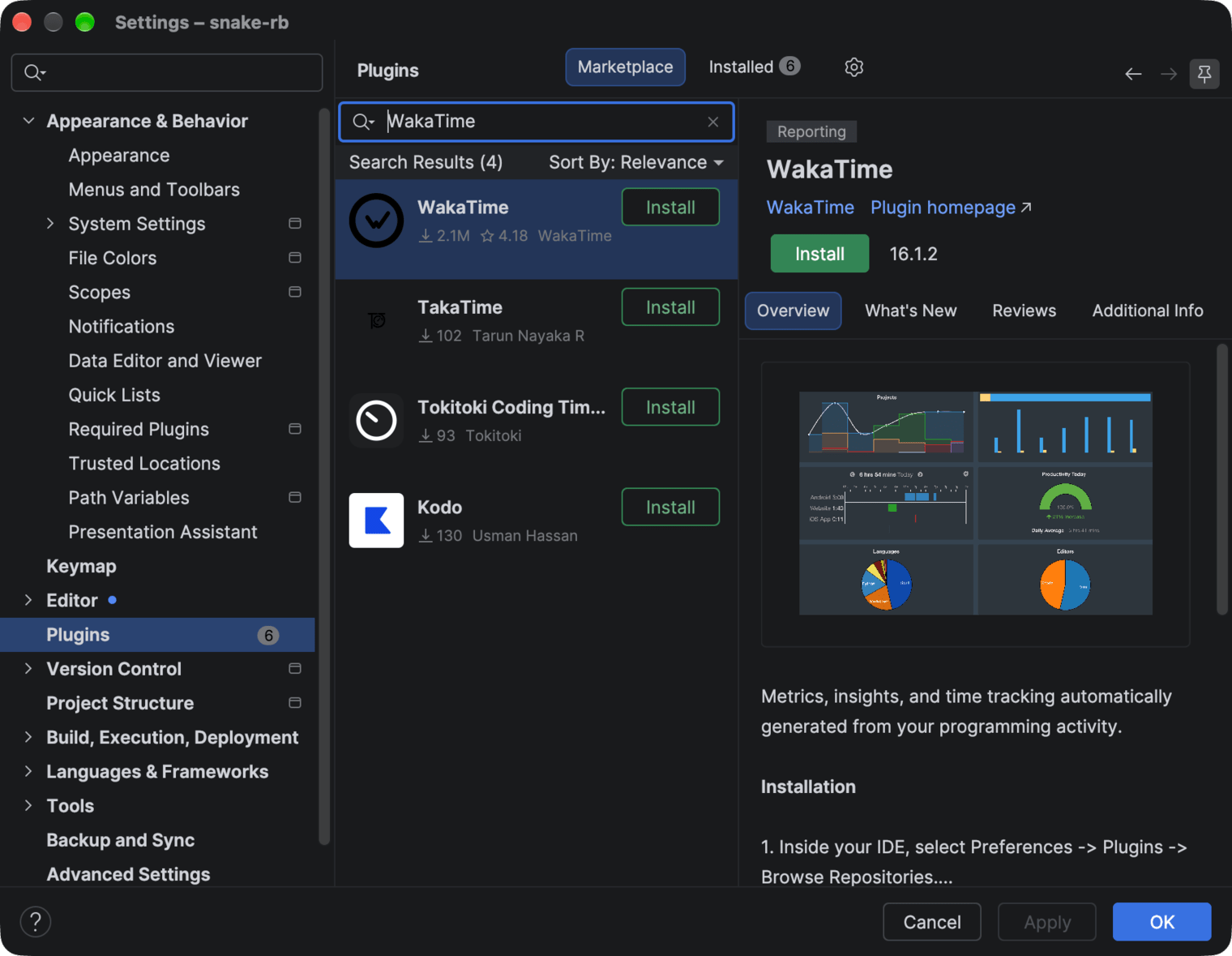
Open Settings by pressing Cmd+, on Mac or Ctrl+Alt+S on Linux and Windows. Choose Plugins, open the Marketplace tab and search for WakaTime. Press Install next to WakaTime.
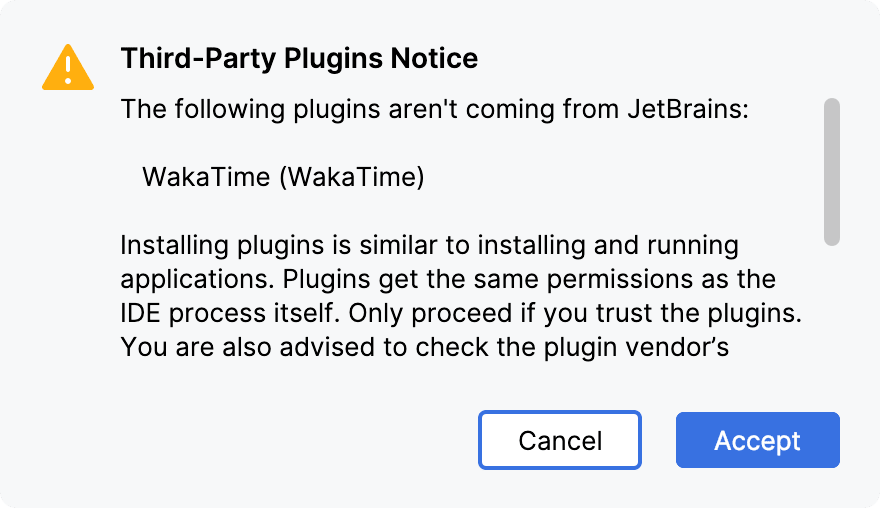
RubyMine warns you that WakaTime is a third-party plugin. Press Accept.
When the button changes to Restart IDE, press it and confirm with Restart.
Step 4: Check that it’s running
Open a project and start typing. Your coding time for today appears in the status bar at the bottom of the window, next to the WakaTime icon.
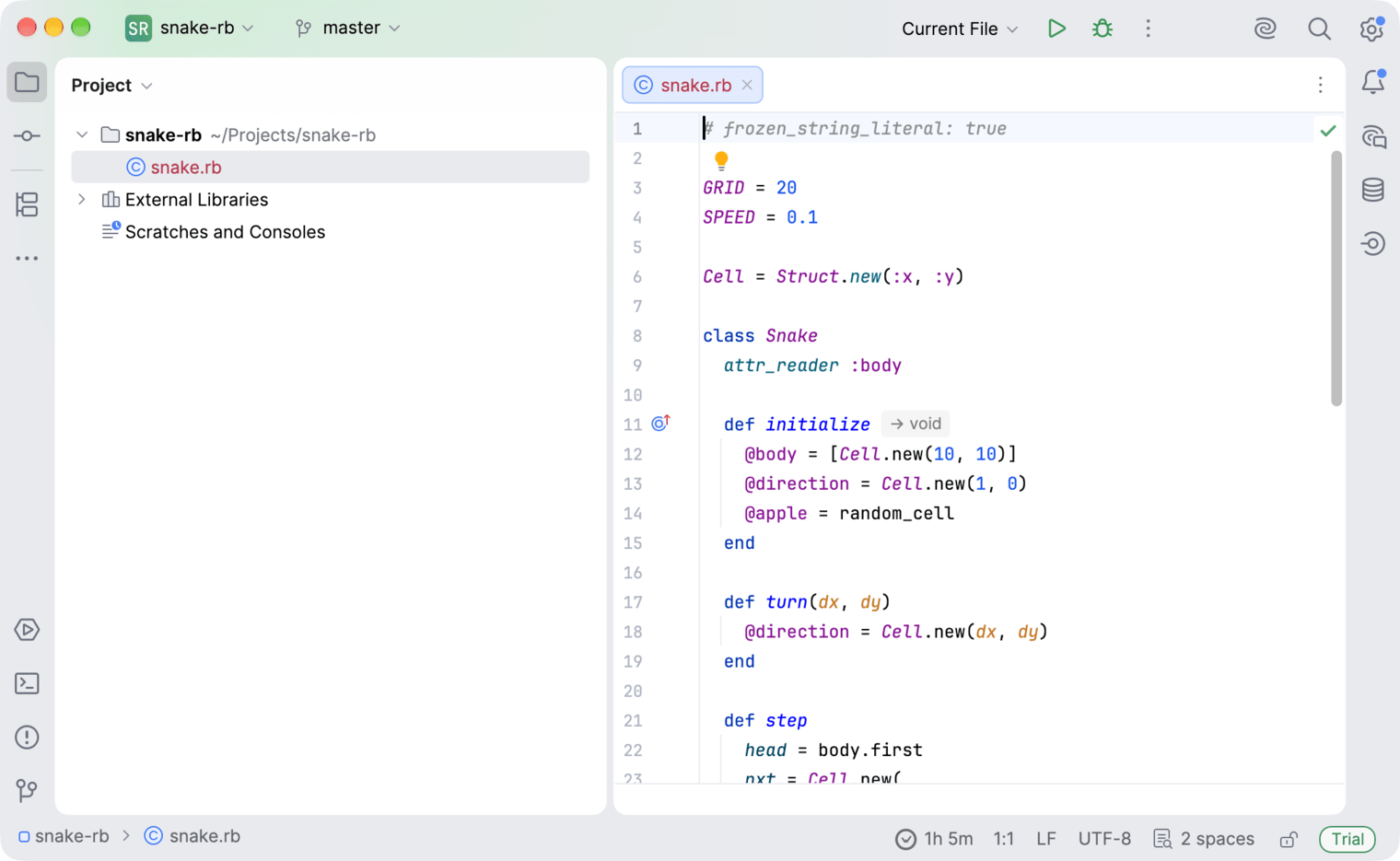
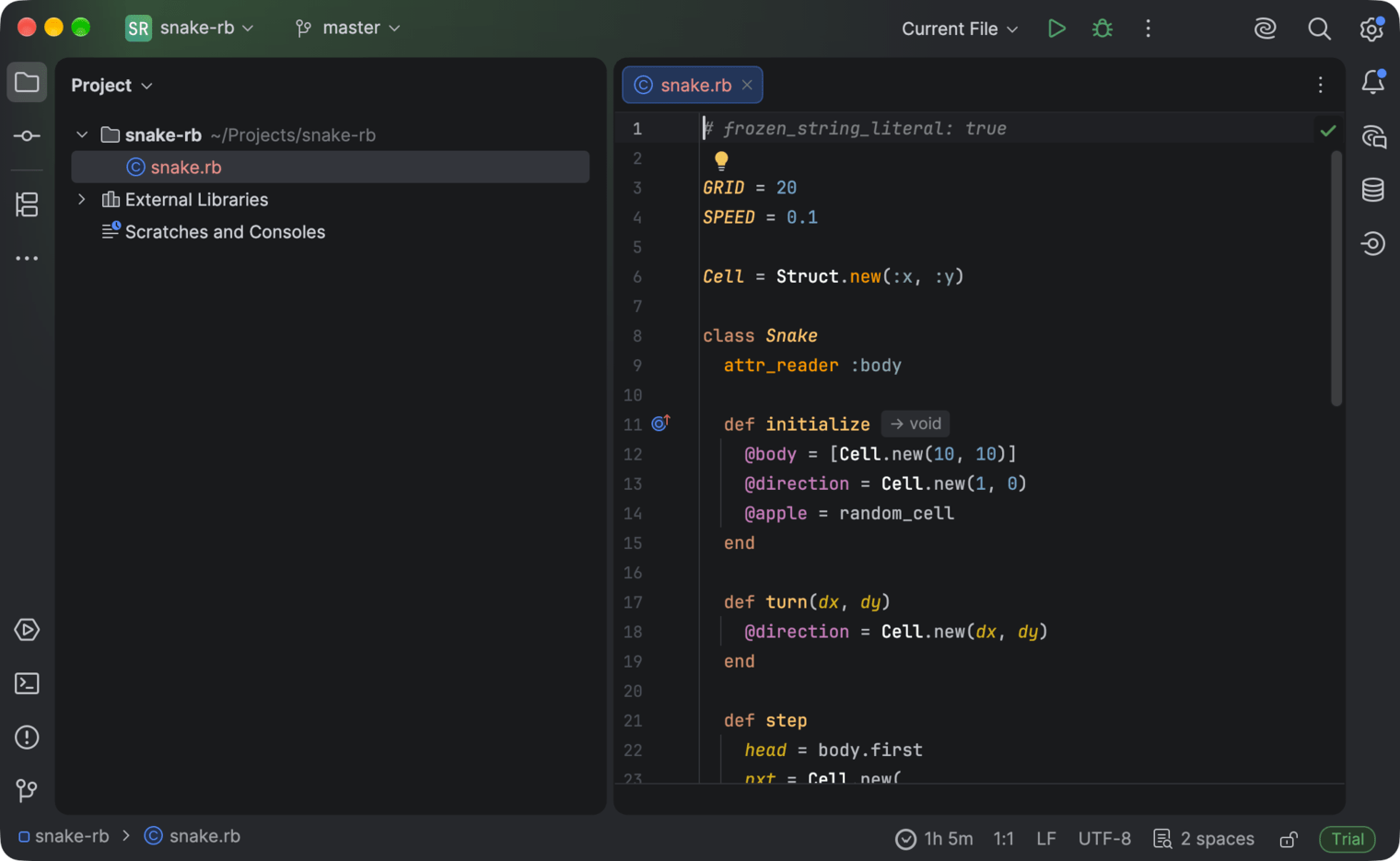


Your time will also appear on your Hackatime dashboard within a few minutes.
The plugin reads your API key and Hackatime’s server address from the setup script. If you skipped Step 2, open ~/.wakatime.cfg (%USERPROFILE%\.wakatime.cfg on Windows) in a text editor and add both. Use the API key from your Hackatime settings:
[settings]
api_url = https://hackatime.hackclub.com/api/hackatime/v1
api_key = YOUR_API_KEY
heartbeat_rate_limit_seconds = 30
Without api_url, your time is sent to WakaTime instead of Hackatime. Plugin settings lists the other options.
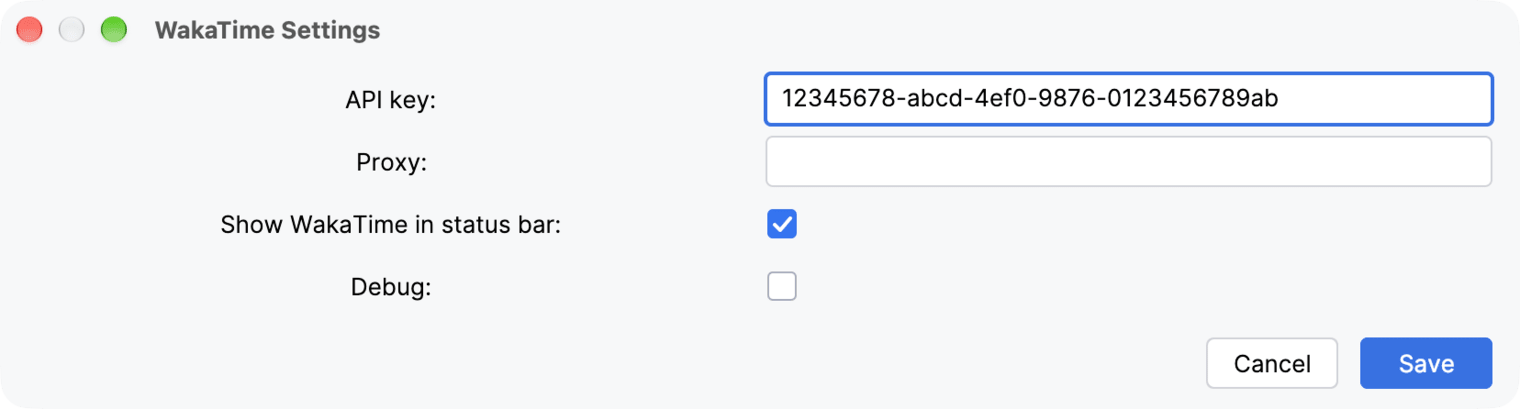
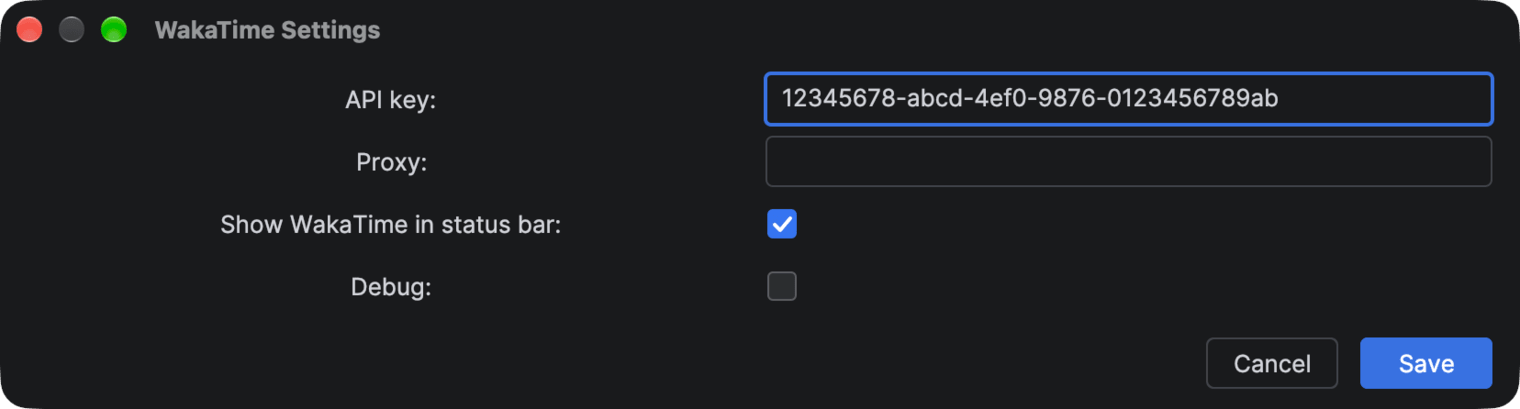
To check which key the plugin is using, open Tools → WakaTime Settings.
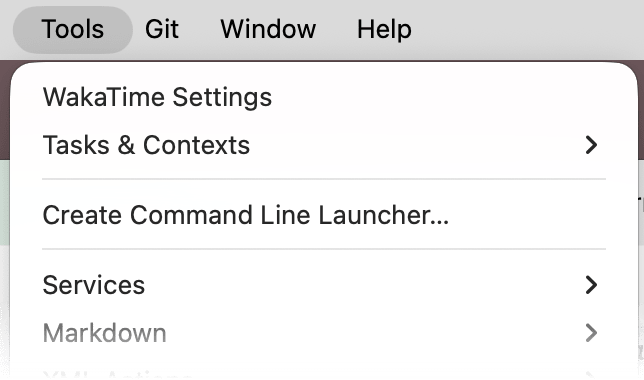
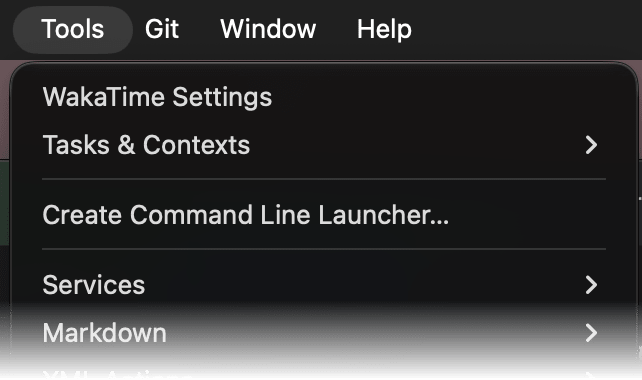
API key should match the key in your Hackatime settings. You can change the key here, but the server address can only be set in ~/.wakatime.cfg.
What gets tracked
RubyMine sends a heartbeat when you open or switch to a file, edit it, move the cursor or scroll, at most once every two minutes for the same file, and every time you save. Your project, branch, language, line and cursor position come along with it.
Troubleshooting
- Not seeing your time? Make sure you completed the setup page first, or that
~/.wakatime.cfghas bothapi_urlandapi_keyfrom Step 4. Then edit a file. Heartbeats can take a few minutes to show up. - Can’t find WakaTime Settings? The plugin isn’t loaded. Check that WakaTime is enabled on the Installed tab in Settings → Plugins, then restart RubyMine.
- Something else? Tick Debug in Tools → WakaTime Settings, restart RubyMine and look for WakaTime messages in Help → Show Log in Finder (Show Log in Explorer on Windows; on Linux the item is named after your file manager).
- Still stuck? Ask for help in Hack Club Slack (#hackatime-help channel).
Next steps
Once configured, your coding time will automatically appear on your Hackatime dashboard. Happy coding!